Category: Basics

  • How to create a bot in Viber

    How to create a bot in Viber

    Viber may not be the most popular messenger in Russia, but it would also be unwise to forget about its users. In this article, we will look at how to create a bot in Viber and how to set up its behavior logic.

    Step 0: Come up with the bot’s logic

    (sorry for the joke with step 0, but this is really something you need to think about BEFORE you even start doing anything)

    To begin with, draw out—on paper or in any tool convenient for you—how and what the bot should do in response to various user actions.

    Try to think in terms of “what does the user do” — “what does the bot show in response” — what text, images, videos, buttons?

    Buttons, in particular, are very helpful for managing user behavior and offering them a choice of possible actions. Ranging from “rate how much you liked it…” (if it’s a feedback bot) to “what are you interested in: repairs, balcony glazing, etc.”

    Another important point is to think through how people will actually get to the bot? Where will you show the link to it, or a QR code for accessing it (for example, at your reception desk)?

    If people aren’t coming to the bot, if it’s unclear how to access it at all, then there’s no point in doing anything else)

    Step 1: Creating a bot in Viber

    • Go to the Viber website: Visit the official Viber partners website.
    • Account Registration: If you don’t have a Viber account yet, you’ll need to go through the standard registration process by entering your contact details, such as your email address and phone number.
    • Creating the bot: Click Create Bot Account, and you can start creating your bot.
    • Bot setup: You will be prompted to come up with a bot name, upload its avatar, write a description, and choose a category (this doesn’t affect anything). NoteWE DID NOT FIND a way to change the bot’s avatar after you upload it. So be very careful about which avatar you upload, otherwise you’ll have to create the bot again.
    • Getting the Token: After successfully creating the bot, you will receive the bot token. This key is secret and should be kept in a safe place (whoever knows it can control your bot).

    Step 2: Setting the bot’s logic

    There are two main ways to create a bot in Viber and define its logic:

    • Using a bot builder or bot management platform. These tools offer ready-made solutions and templates, which simplify the process of creating a bot. For example, Chotam.ru — an excellent bot builder for Viber and other messengers, where you can set up the bot’s logic once and use it in different messengers you need for communicating with clients.
    • Programming the bot yourself. This method requires certain programming skills and is much more difficult compared to using a bot builder.

    The bot’s logic in Viber can be set in a bot builder or bot management platform. This includes defining the rules by which the bot will interact with users. If you decide to program the bot yourself, the process of setting the logic will be much more complicated and will require deeper programming knowledge.

    Step 3: Testing and launch

    After you create a bot in Viber, it’s important to test it to make sure all functions work correctly. Then the bot can be launched and start serving users.

    How to create a bot in Viber is a question that interests many. However, note that Viber is not the most popular platform; you might want to start with creating a bot in Telegram (which is much more popular in Russia).

    Thanks to the availability of various tools, such as bot builders and bot management platforms, this process can be relatively simple. However, programming a bot yourself is a more complex option and requires certain skills. The choice of method depends on your goals and your level of programming knowledge.

  • How to make a button in Telegram — an important tool for interacting with clients

    How to make a button in Telegram — an important tool for interacting with clients

    Many people like the buttons in Telegram mailings they receive, and therefore ask themselves the question “how to make a button in Telegram” in their messages.

    In today’s world, attracting users’ attention is one of the key factors for the success of any business.

    Buttons in Telegram messages open up great opportunities for interacting with your audience. Instead of asking users to enter complex commands or follow links, you can simply offer them to press a button right in the message.

    Thus, the interaction process becomes as convenient and pleasant as possible, which increases the likelihood of it being completed.

    However, there is one feature — only bots can use buttons in Telegram. In a regular message from a regular user sent to another user, you cannot insert a button.

    On the one hand, this is a kind of limitation — but it opens up additional opportunities for marketing and customer interaction through bots. And there are not only buttons there!

    Bots can automatically answer customer questions, bots can offer a choice of further actions (again — in the form of buttons), bots can send messages at once to everyone who has subscribed to them (in fact — just started interacting with them).

    How to make a button in Telegram — Step 1 — create a bot

    To create a bot in Telegram that can use buttons in messages, you need to follow these steps:

    • First, you need to create the bot itself. For this, Telegram has a special service bot @botfather. It will help you register a new bot and get a token for API access.
    • When the bot is created, you need to connect it to a bot builder (or write code for it yourself — this is much more difficult). This will allow it to work and perform the necessary actions, including using buttons in messages.

    We have a very detailed article on how to create a bot in Telegram.

    Step 2 — connect the bot to a bot builder

    After your bot is created, you connect it to a bot builder/platform for bots.

    This is a very simple action and usually only requires copying the token from your bot, which you will get from the service bot @botfather (see previous step).

    There are a huge number of bot builders, and even trying them all would take several days — we recommend using Chotam.ru — a simple, reliable builder with an intuitive graphical interface at the “draw an arrow” level.

    Step 3 — set up logic and buttons

    After you have connected your bot to the bot builder, you start setting up the bot’s logic there and at what point the bot offers the user a choice in the form of buttons.

    This is quite difficult to describe at once for all builders — because they all have different interfaces, but usually everything starts with some initial condition block, where the “start” is set — what the bot should start responding to. For example, pressing the “Start” button or the /start command — it’s the same thing.

    After that, you usually enter the message text that the bot replies with, and there you also choose whether there will be buttons in this message, and if so, which ones.

    And you also set up further messages in response to button presses.

    We understand that this sounds very “vague”, but indeed, the interface is different in every builder. One way or another, hundreds of bots appear every day, which means people somehow cope with this task)

    In the same way, any bot builder has the ability to send mailings to subscribers. And in it you set — what text, images, and buttons will be there. At the same time, you also need to define what will be shown to the user in response to pressing these buttons.

    Don’t be intimidated by these words — usually this is done in just a few clicks, depending, of course, on the user-friendliness of the builder’s interface.

    How to make a button in Telegram — but why?

    Buttons make interaction with bots simple and convenient, which helps increase user activity.

    You’ve probably come across such feedback collection (no matter which messenger) many times — like “You were at our bar/fitness center/cinema today, etc. — please send a number from 1 to 5 to rate how much you liked it.”

    It is very inconvenient for a person to enter numbers

    • you need to switch the keyboard to number mode,
    • you need to press the desired number (a very small button) and not miss,
    • you need to press the Enter key.

    Therefore, the level of interaction with such surveys is much lower than when real buttons are used.

    Well-visible, large buttons on the screen require only one thing — to press the desired one — this is ONE action.

    With buttons, you can create interactive polls, simplify navigation through the bot, enable quick booking or ordering of goods and services. All this makes buttons in Telegram a powerful tool for increasing conversion and improving the effectiveness of customer interaction.

    Therefore, how to make a button in Telegram is not only a technical question. It’s a question of how to make interaction with your audience simpler and more convenient, which directly affects the effectiveness of your business. Creating a bot and using buttons in Telegram is an excellent way to achieve these goals, and the Chotam bot builder will do a great job with this task.

  • How to send a newsletter in WhatsApp: all methods

    How to send a newsletter in WhatsApp: all methods

    In this article, we will look at how to send a broadcast in WhatsApp. Today, WhatsApp is one of the most popular messengers in the world. Thanks to its simple and convenient interface, millions of people around the world use WhatsApp for personal and business communication. However, one of the most useful features WhatsApp can offer is the broadcast function.

    The easiest way is to use the official broadcast connection and connect the WhatsApp broadcast service Chotam.ru

    In general, there are 4 fundamentally different ways to send a broadcast:

    • Via WhatsApp Business API (legal method)
      • pros: personalization is possible (each user can be addressed by their name or, for example, the name of the service they used), you can connect a chatbot and automate communication, low risk of ban, you can send thousands of messages within minutes
      • cons: price — about 7 RUB per outgoing message + the cost of the broadcast/chatbot platform — from 500 RUB per month.
    • pros — free,
    • cons: relatively much manual work, no personalization, those who have not added you will not receive it, no buttons, cannot connect a chatbot
    • pros: free
    • cons: relatively much manual work, no personalization, cannot connect a chatbot
    • pros: relatively inexpensive (depends on the platform), you can connect a chatbot, personalization is possible.
    • cons: high risk of ban, you will not be able to send thousands of messages in a reasonable foreseeable period.

    Let’s look at them one by one.

    How to send a broadcast in WhatsApp LEGALLY — via Business API

    WhatsApp Business API is a tool developed for businesses that want to interact with customers via WhatsApp on a “corporate” level.

    One of its advantages is the official ability to send broadcasts. Including — with the insertion of buttons, names, or other variables into the broadcast text.

    Below are the steps for this process.

    Step 1: Get access to WhatsApp Business API

    To use WhatsApp Business API, you need to connect your number. This is usually done through the website of a WhatsApp connection partner.

    You need to have a Facebook account and a “business” created in Facebook to connect this.

    Please note that the approval process may take some time, and WhatsApp usually provides access only to companies that meet certain criteria.

    Step 2: Set up your Business API profile

    After you are granted access, you need to set up your profile in WhatsApp Business API. Here you can add information about your company, such as name, description, contact details, and logo.

    Step 3: Integrate with a broadcast platform/chatbot builder

    WhatsApp Business API does not have an interface for creating and sending broadcasts, as in regular WhatsApp. Instead, you need to integrate the API with your customer relationship management (CRM) system or connect a BROADCAST PLATFORM, such as Chotam.ru

    This may sound “scary”) but in fact, it is no more difficult than a few clicks and copying/pasting a line with a token. In reality, it takes a couple of minutes, we have a video about this.

    You can also develop your own system that will send requests to the API to send messages, but this is extremely expensive.

    Detailed documentation on WhatsApp Business API, including information on how to send messages, is available on the official WhatsApp website.

    Another important advantage of connecting a broadcast platform or chatbot builder is that you can also use other messengers, for example, Telegram, and also set up automation and a chatbot there, usually — for the same money.

    Step 4 (optional): Business verification

    If you plan to send more than 250 messages per day, you need to go through so-called “business verification” in Facebook.

    To do this, you need to upload two documents:

    • Name confirmation — usually OGRN is suitable for this
    • Address and phone confirmation — for this, an invoice issued to YOUR organization, where your phone and address are indicated, is usually suitable. They must be indicated exactly as in your Facebook account. We at Chotam provide you with full support in this matter, including helping you upload documents together via Zoom.

    Step 5: Create a broadcast template

    In WhatsApp, you are only allowed to send approved and moderated messages. Usually, creating such a template is not difficult and is done using the connected platform.

    You can also create a template simply in the Facebook business account.

    Step 6: Send the broadcast

    Upload your recipient list to your platform/sender and send the broadcast.

    The process differs from system to system, but in general is not difficult and is described in the system instructions.

    We also RECORDED A VIDEO where you can see how simple and easy it is to create broadcasts in WhatsApp via Chotam.

    Important notes:

    • WhatsApp Business API is mainly intended for “notifications” or “alerts”. All broadcasts must comply with WhatsApp’s policy on active communication. For example, all sent messages must be user-initiated (i.e., the user must first write to you or explicitly subscribe to receive messages).
    • WhatsApp may impose limits on the number of messages you can send via the API to prevent spam.
    • Do not forget to comply with data protection and privacy laws when using WhatsApp Business API.

    How to send a broadcast in WhatsApp via the WhatsApp Business app

    You can send a broadcast the traditional way — via the app on your phone.

    Step 1: Create a contact list

    The first step is to create a list of contacts to whom you want to send the broadcast. You can add contacts manually or import them from your phone’s address book.

    Step 2: Create a broadcast

    Once you have a contact list, you can start creating a broadcast. Here’s how to do it:

    • Open WhatsApp Business and go to the “More” or “…” menu in the top right corner of the screen.
    • Select “New broadcast”.
    • You will see a list of all your contacts. Select the contacts you want to send the broadcast to, then tap “Done”.

    Step 3: Write and send your message

    Now that you have a broadcast, you can write and send your message. Enter your message in the input field as usual, then tap “Send”. Your message will be sent to all contacts in your broadcast.

    Important notes

    • Remember that a broadcast in WhatsApp sends individual messages, not a group message. This means that replies to your broadcast will come to you as separate messages, not in one group chat.
    • Note that WhatsApp does not allow you to send broadcasts to those who have not added you to their contacts. This is done to protect users from spam.
    • Be careful with the number of messages you send, as too much activity may result in temporary or permanent blocking of your account.

    In conclusion, broadcasting in WhatsApp is a powerful tool for reaching a large number of people. However, like any other tool, it should be used responsibly and with respect for WhatsApp’s rules and regulations.

    How to send a broadcast in WhatsApp by creating groups

    Step 1: Create a group.

    To start, you will need one group; gradually, you will add more as they fill up.

    Step 2: Add subscribers to your group.

    You can add up to 256 subscribers to one group.

    Step 3: When you need to send something to everyone — a “kind of” broadcast — just make a post in the group.

    Step 4: If necessary, create another group, and so on, as they fill up.

    How to send a broadcast in WhatsApp via “grey” connection

    “Grey” connection is when you connect your WhatsApp to a broadcast platform that “pretends” you are sending the broadcast from your phone “manually”.

    This method violates WhatsApp’s terms of use, and if you send a significant number of messages you need to be extremely careful — set up various message randomizations and choose the duration of pauses between them.

    We DO NOT RECOMMEND this method and mention it only for informational purposes.

    Step 1: Connect your phone to the “grey” broadcast platform. Usually, this is done by “pointing your phone at the QR code on the screen”

    Step 2: Depending on the sender’s capabilities — set up the message text and the bot’s reactions to user actions

    Step 3: Upload the database with phone numbers, and possibly names.

    Step 4: Start the broadcast — remember the need for message randomization and long pauses.

    WhatsApp Business API offers greater flexibility and power for companies that want to use WhatsApp to interact with customers. However, this tool requires a more technical approach and compliance with strict WhatsApp policies.

  • The “usual” way — via the app WhatsApp Business
  • Imitation of broadcast via group creation
  • Via “grey” sender connection
  • How to reply to a message in Direct

    How to reply to a message in Direct

    You often miss the pop-up message that someone has written to you, and the question arises of how to reply to a message in Direct, where to find it, etc.

    Instagram Direct is a private messaging feature on the Instagram platform. It is a useful tool for communicating not only with friends and acquaintances, but also with clients if you use Instagram for business purposes. In this article, we will discuss how to reply to messages in Instagram Direct.

    How to reply to a message in Direct

    • Open the Instagram app on your mobile device or the web version of Instagram on your computer.
    • Click on the “Direct” icon (the paper airplane icon) in the top right corner.
    • You will see a list of all your current conversations. Select the one you want to write in.
    • Enter your message in the input field at the bottom of the screen.
    • Click “Send”.

    General recommendations for replying to clients in Direct

    If you run a business on Instagram, the following tips will help you.

    • Don’t forget the greeting. People often perceive the absence of words like “good afternoon” or “hello” in the first reply as rudeness.
    • Try not to move the conversation to another channel, like “ask this question in our Telegram chat.” The person has ALREADY come to you and is already asking the question where it is convenient for them. Just answer them.
    • If a person is interested in something you don’t have, try not to reply in the style of “no, and that’s it”. Try to offer the client alternatives from what you do have. Often people are looking for a solution to a problem, not a specific thing. Maybe they just didn’t think that their problem could be solved the way you suggest. Even if it doesn’t work out—you still conveyed useful information to a potential client. That is worth a lot!

    Believe me! A LOT depends on the tone of communication. In the dialogue “How much is the stroller — 12,000 — Do you deliver by SDEK? — No” there is not a drop of friendliness or good attitude towards the client, and people feel it, even though all the answers are “to the point” and correct in essence.

    How to reply to a message in Direct using a chatbot

    Chatbots can automate and simplify the communication process in Direct. This is especially important if you run a commercial account—sell something, communicate with clients.

    The thing is, clients do not like and will not wait two hours for a reply. Your phone may be in your pocket or bag, and you may not notice for a long time that a new message has appeared.

    Instead of replying to every message yourself, you can set up a bot that will automatically answer frequently asked questions or offer users a choice of replies using buttons.

    Automatic replies to frequently asked questions

    One of the most useful ways to use chatbots in Instagram Direct is to automatically reply to frequently asked questions.

    For example, if you are a business owner, you can set up a bot so that it automatically answers questions about opening hours, prices, or product availability.

    This can significantly save you time and increase the level of customer service.

    Useful lifehack: according to our statistics, on average about 20% of the text is taken up by the greeting reply. Even just making the simplest bot that replies to greetings with some kind of greeting (you can make up to 10 different ones) will already save you up to 20% of the time you spend communicating with clients. Setting up such a bot in the Chotam.ru service literally takes 2 minutes, and it can actually cost 0—there is a free plan for small volumes.

    Using buttons to reply in Direct

    Another way to improve communication in Direct is to use reply buttons. Instead of users typing their reply, they can simply click on a button with the appropriate option. This simplifies the communication process for users and reduces the likelihood of misunderstandings or mistakes.

    In chatbots, you can set up where to lead the user through which message chains when certain buttons are pressed.

    However, as a regular user you cannot send a button to another person. This is only done through a chatbot builder.

    Users love buttons) they click them much more willingly than options like “send the number 1 to…”

    In general, most modern chatbot builders offer a fairly easy way to connect a chatbot. For example, in Chotam.ru it literally takes a couple of minutes.

    In conclusion, Instagram Direct is an excellent communication tool that can be made even better with a chatbot. With its help, you can automate and improve communication with users, saving time and improving the level of service. In addition, chatbot platforms usually provide additional convenient features—for example, exporting correspondence to Excel for subsequent statistical analysis.

  • How to enable comments on YouTube

    How to enable comments on YouTube

    YouTube gives content creators the ability to open or close comments under their videos. This allows you to control the conversation around your video and protect your community from unwanted comments. Here is a step-by-step guide on how to enable comments on YouTube.

    1. Log in to your YouTube account

    The first step is to log in to your YouTube account. If you don’t have an account yet, you need to create one and upload at least one video, but you probably already have something uploaded, right?)

    2. Go to the content management page

    Click on your profile icon in the top right corner of the screen and select «YouTube Studio». Then, in the menu on the left, select «Content». Here you will see all your uploaded videos.

    3. Select the video to configure comments

    Find and select the video for which you want to enable comments. Click on its title or the pencil icon to the right of the video.

    4. Go to the «Details» section

    After this, you will be taken to the video settings page. There are various tabs here, but you need to go to the «Details» tab.

    5. Find the comment settings

    Scroll down to the «Advanced settings» section and select «Show more». Here you will find the «Comments and ratings» section.

    6. Enable comments

    In the «Comments and ratings» section, you can choose whether to allow comments under this video. If you want to enable comments, simply select «Allow comments».

    You may want to receive notifications about comments on your videos in Telegram at this point, and decide to connect the Chotam.ru service — it is free for small volumes and also supports all major social networks. This is an excellent service to make sure you don’t miss a client who left a question or review!

    7. Save changes

    Don’t forget to save your changes by clicking the blue «Save» button in the top right corner.

    Note: You can also set up comments for all future videos. To do this, in YouTube Studio select «Settings» > «Community» > «Default settings» > «Comments».

    Please, before enabling comments on YouTube, consider that having open comments under your video implies the need to moderate comments.

    This will help you avoid unwanted content and ensure positive communication for your community. No one likes to interact on a channel where, for example, people are arguing and the channel owner ignores it. And if you represent an official organization or company — you will definitely want to promptly remove unacceptable comments.

    The Chotam.ru service — is perhaps the best service for comment moderation. It collects comments from your YouTube channel and sends them to your email or Telegram so you don’t miss a client’s question or can promptly respond to unwanted ones. The main advantage of the service is that it works for all your social networks — YouTube, VKontakte, Odnoklassniki, Telegram, banned networks — name it, and most likely the service supports it.

  • Google leads — how to get them easily?

    Google leads — how to get them easily?

    If you use the lead form in Google Ads, then how to receive leads from Google Ads is one of the most relevant questions.

    You may already know that in Google Ads a new ad extension has appeared — there it is called “Lead form,” or Lead form in the English interface.

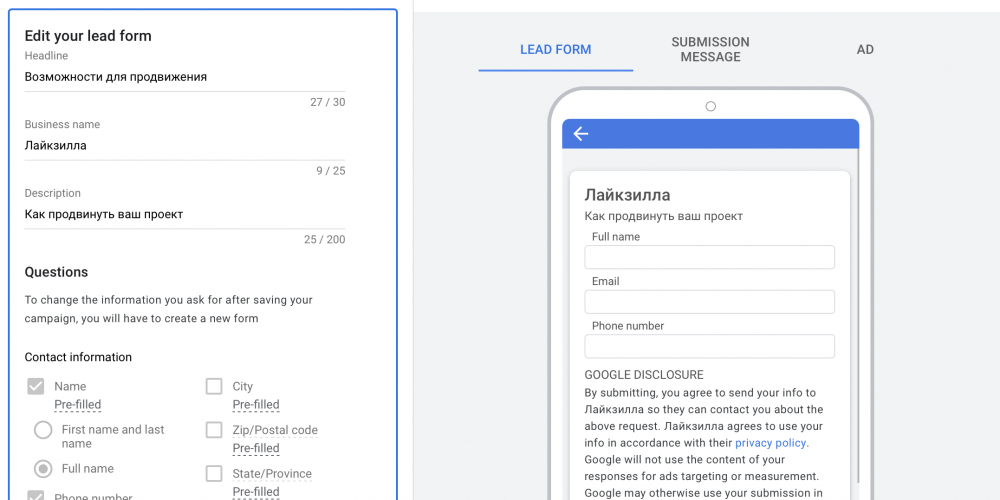
    The essence of this extension is that you can add it to your ad, and people will have the opportunity to fill out this form and leave their contact details.

    The problem with leads from Google Ads

    If you have already started using this format, then you know that the leads are simply saved in the system, and you can download them in CSV file format.

    There is also the possibility to link the form with a CRM, but for this you need to have such a CRM, and not everyone has one of those that are supported.

    Google leads — to email or Telegram

    For this, there is a simple service Chotam.ru

    • Register on the Chotam.ru service
    • Create a task of the type Google — Lead form
    • Copy the webhook address and key from there and paste them into the form settings in Google Ads as shown in the picture below

    After that, all leads received from this form will be sent to your email or Telegram (depending on what you have selected in the settings).

    That’s it — you don’t need any third-party CRMs, and there can be as many recipients as you want.

    In addition, the Chotam service can receive comments from advertising posts on Instagram, and in general is excellent for working with inquiries from social networks.

  • Comments from advertising posts — how to notice and respond

    Comments from advertising posts — how to notice and respond

    For many, it comes as an unpleasant surprise that notifications about comments on promotional posts are often not visible. This is a damn annoying situation, because comments on a promoted or advertising post are most often from an interested client. And missing it, or taking too long to respond — is an unaffordable luxury for business. Here’s what to do in this case.

    This primarily concerns ads launched on Facebook/Instagram. It often happens that a user comments on your advertising/promoted post, but you do not see a notification about this comment in the desktop interface of Facebook/Instagram, nor in the apps on your phone.

    Moreover, some comments do “break through” into notifications, and some do not — and you can only see them on desktop by going to business.facebook.com — or in the shared inbox of your Facebook page + Instagram business account.

    Why it works this way — we still haven’t figured out, but the fact remains — one of the most frequently asked questions we get is whether the Chotam.ru service can track comments on advertising posts. And the answer is yes!

    At the same time, if people write to you in Direct because of your ad, you might find this article useful.

    Comments from advertising posts — how to respond?

    Why is it important to respond?

    Let’s first look at the main types of comments you might get on advertising posts:

    • Question from a potential client: “Do you have the same one, but in red?”
    • Positive feedback from a client: “I tried it, I liked it”
    • Negative feedback from a client: “I was there — it sucks”
    • Spam: “Buy it here instead + link to their account/website”
    • Fraud/‘hijacking’ a client: when someone replies to a client’s question with “replied in Direct,” sometimes also asking to delete the original comment, and then it’s a gamble — you might pay and get the original product/service, or you might not
    • Swearing/profanity/unacceptable behavior
    • “Who knows what”: smileys/emojis, when it’s unclear what the author meant — often done by bots to attract attention.

    The very first rule: you should always reply to meaningful comments addressed to you, and respond (except for “who knows what”) as soon as possible.

    Because if it’s a client — they won’t wait long. No answer — they’ll buy elsewhere.

    If it’s negative feedback, you obviously need to respond as soon as possible, because otherwise it will just hang there and scare off other clients.

    Even if it’s positive feedback — you should at least say thank you.

    If it’s an attempt to hijack a client — you should immediately block such people and delete their comments.

    Swearing/profanity should also be deleted right away, and maybe even block their authors if they don’t get it.

    But all sorts of “who knows what” can be left unanswered, and moreover — you don’t even want to be distracted by them.

    And here we come to the features of the Chotam.ru service, which is ideal for working with comments from ads — and in general with any inquiries from social networks. It can:

    • Send all inquiries from social networks to your email or Telegram, including from advertising/promoted posts
    • Reply to such inquiries directly from Telegram, from email, or from the service itself — so you don’t have to “jump” between different windows/apps, or log in and out of different accounts
    • Ignore comments that don’t contain meaningful information, so you don’t get distracted by all sorts of emojis from bots.

    The service also automatically detects questions, and you can see the response speed in your regular report, as well as a list of questions that haven’t been answered.

    Registering with Chotam.ru takes less than a minute, and it’ll take you another couple of minutes to tell the service which communities to collect comments/DMs/applications from. You’ll have 7 days to test all the features, and tracking inquiries from 1 community with low activity is free forever.

  • How to reply in Direct on Instagram

    How to reply in Direct on Instagram

    Of course, you can reply to Direct messages on Instagram from the app, but this requires launching a VPN, so there is a more convenient way.

    If you are working with the Instagram app — you need to go to the main screen by tapping the “home” icon at the bottom left in the Instagram app, and then tap the chat icon at the top right. All your conversations in Instagram Direct will open, and there you can reply.

    Problem with Instagram Direct Messages

    The main problem with replying to Direct messages on Instagram is to NOTICE a message from a potential client in Direct in time, and not miss it. After all, the client will not wait for your reply for hours or a day, unless you have some super-unique product or service (99% do not). If they do not get a reply within a few minutes, the client will simply look for and ask another seller — because they are sitting right now and ready to buy. Why should they wait?

    The problem is that pop-up notifications on your phone get “buried” by others — and you might simply not see the client’s question.

    The Chotam service comes to the rescue — it allows you to chat with clients from the service itself or directly from Telegram.

    Main news! Now we support messaging in Instagram Direct as well. And — using official methods, without any password sharing.

    Before you reply to a Direct message on Instagram, you first need to connect your account to the service. How to do this is shown in this video:

    Reply to Instagram Direct via Telegram

    This is a very important and convenient feature — replying via Telegram. When all your messages and comments come to your Telegram chat or channel, and you reply directly from there.

    To do this, you need to:

    1. Connect Telegram in the Chotam service

    2. After that, you can reply to Instagram Direct via Telegram — just tap-and-hold on the message in Telegram, click Reply and write your reply. Your reply will be sent as a Direct message to the person who originally asked you a question.

    As a result: by spending less than 5 minutes connecting Instagram and Telegram, you get the ability to see all messages and comments in one place.

    In addition, the service allows you to export comments from Instagram to Excel, which is very convenient for saving history and running contests.

  • How to export comments from Instagram to Excel

    How to export comments from Instagram to Excel

    Exporting comments from Instagram can be challenging. And today, it’s not just an app for sharing photos and videos, but also a powerful platform for promoting your business. It attracts us with its simplicity and ease of use.

    Everything you need is here: product placement, communication with customers, advertising, holding giveaways and contests – doing all this in the app is quite easy. There are many ways to track comments on Instagram, but there are also some difficulties, for example — how to export comments from Instagram to Excel. Downloading comments to a separate file may be necessary for analysis or when running a giveaway.

    Transferring comments from the browser

    Of course, you can manually download comments to Excel. To do this, you need to open the post and simply copy the comments. This is not difficult when you have a few, but when there are thousands – problems arise. The main inconvenience is the social network’s limitation, which allows you to copy a maximum of 2000 comments through the browser.

    A service to export comments from Instagram

    There are many different programs and applications for exporting comments from Instagram to Excel. Today we will tell you about our service for SMM specialists Chotam, which, in addition to other useful features, has a built-in comment export function.

    All tasks created in the service have a section called “Task notification log”

    How to export comments from Instagram to Excel

    In the log, select  “Export to XLSX file”

    Voila, your Excel table is ready. It will include the user’s id, a link to their profile, the actual comment text with the date, and a link to the post with the comment.

    Not all comments are exported

    There is one very important point that we cannot keep silent about —

    Instagram does not provide all comments. When counting, you may find that the number of comments in the Excel table is less than under the post.

    This does not happen by accident.

    • Comments left by users with private accounts are not downloaded. In this way, Instagram complies with its privacy policy. That’s why under giveaway posts we always see: “Be sure to open your page for the duration of the giveaway.”
    • Comments that are considered spam for one reason or another will also not be loaded into the table. For example, in a reply chain to a comment, only the first 4 will be exported, the rest will be considered spam by the app.
    • Comments that were left not through the official app, but using third-party programs, may also not appear in the table.

    So, Instagram filters out comments from accounts whose owners did not comply with the contest rules.

    With our service, you will no longer say that exporting comments from Instagram is long and tedious. Chotam will do everything itself, freeing up your time for truly important tasks.

  • How to track comments on Instagram

    How to track comments on Instagram

    Instagram is the most sales-oriented social network. And tracking comments on Instagram is extremely important for sales. In fact, Instagram is one big feed of posts with photos that people like, comment on, and repost. The social network notifies account owners about all these actions. But you need to see your “warm” audience, those people who are interested specifically in your product. Therefore, out of all the notification information, you will be most interested in the comments.

    Indeed, a person asking “Price?”, “How much does it cost?”, “Is there delivery?”, “Do you have it with mother-of-pearl buttons?” — this is a hot client. They are almost ready to buy from you. If you don’t respond right away, you’ll lose them. And they will surely find another option. So what should you do?

    Is it possible to track comments on Instagram using built-in tools?

    The problem is that you can receive comments in only three ways. And none of them are very convenient:

    • Via push notifications: they crowd each other out on the screen. Easy to miss.
    • In the general “inbox” folder, on the linked Facebook page. This requires either a constantly open browser on your computer or an app on your phone. And again, it’s easy to miss among a bunch of other notifications.
    • Manually, by clicking the “heart” in your profile — and viewing the history. It will look like this:

    The root of the problem with tracking comments on Instagram is the following. Insta tries to notify you about everything under the sun. Someone liked your post, someone followed you. In active communities, this can happen constantly in a continuous stream. But you are primarily interested in comments, because this is a “signal” of a potential client. Look at the picture above. Here, you are only interested in the comment at the very bottom, not the whole list of followers.

    For those who need to track comments on Instagram, a special service Chotam comes to the rescue. With its help, you will receive notifications about comments at any time of day. By email, in Telegram, in Viber, or in private messages on VKontakte. You can reply to comments on your business account or delete them without logging into Instagram. This is very convenient if you manage several accounts.

    You can also set up forwarding of comments to your colleagues. As a result, whoever is free at the moment can respond to them.

    And you can also export comments to Excel — and do any analytics you want with them there.

    The Chotam service does not need your login and password. Chotam uses the official, Facebook-approved method for app access to receive comments.

    There is a free plan! Enjoy!

    Or maybe you have a similar problem, but for VKontakte? Read our other article.